Replying
Taking a thread, the reply box, Cc and Bcc, saved replies, attaching files, and the three ways to send.
Everything at the foot of an open thread.
At rest
A thread you are only reading does not show a reply box. The foot holds a short row instead:
- Reply — opens the box.
- Add internal note — opens a different box, for your team.
- Take — on a thread from the queue. See below.
The box arrives once you have said what you are writing. A thread opened to check one fact does not spend its bottom third on a form.
Taking a thread
A thread in the Queue is nobody's until somebody takes it. On one of those, Take is the only control the desk offers — every other action is refused until it is pressed.
Assigns the thread to you so you can reply. It starts counting against your limit.
It sits in the same corner Reply occupies on a thread already yours, because it is the same decision one step earlier.
If the foot offers nothing at all, it says why — This thread cannot be replied to while it is … — rather than leaving a bar that looks broken.
The reply box
Who it goes to
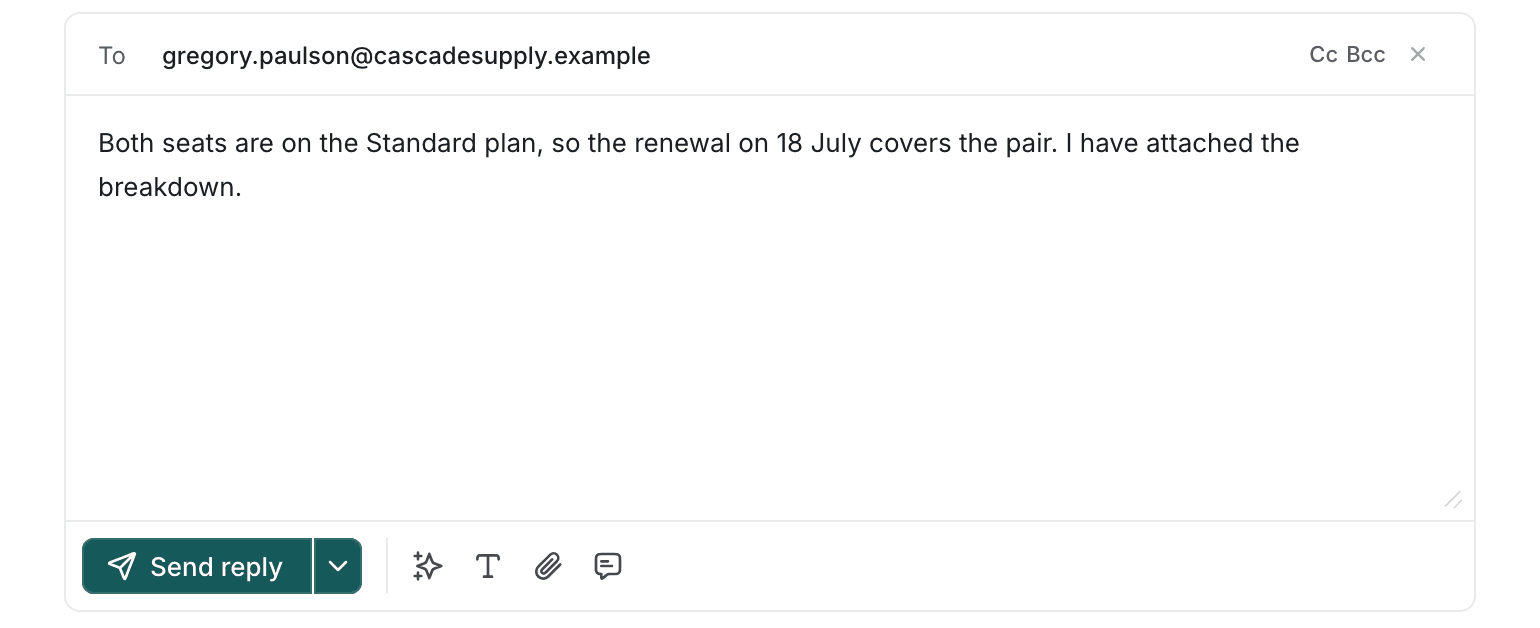
To is fixed — the address that wrote in. Cc and Bcc are added with the two small controls beside it.
Both open a picker of your team, with two shortcuts at the top: people you copied recently, and whoever has worked this thread before. You can also just type an address.
Closing a Cc or Bcc line clears it. That is deliberate — a hidden line still carrying an address would copy somebody you can no longer see you are copying.
If the directory is unavailable, the picker says so and you type the address instead.
Writing
The box is plain text by default. The A control turns formatting on, which adds a tray of tools under the message: bold, italic, lists, alignment, text size, colour and links.
Cmd/Ctrl + Enter sends. Plain Enter is a paragraph break — this is a letter, not a chat message.
Saved replies
The saved-reply tray inserts an approved answer, which you then edit before sending. It appends rather than replacing, so two sentences you have already typed are never lost.
If the template has blanks in it, the box tells you which ones before it will send:
Fill in before sending: {{order_id}}, {{delivery_date}}The placeholders stay visible in the text, so you can see exactly where the holes are.
Attaching files
The paperclip adds files from your machine. Each one is listed under the box with its size and a × to remove it while the reply is still a draft — because the mistake worth preventing is attaching the wrong customer's document, and that one cannot be taken back.
The three ways to send
Send reply sends, and leaves the thread exactly where it is. The caret beside it offers two more:
| What it does | |
|---|---|
| Send reply | Sends. The thread stays yours and stays as it was. |
| Send and park | Sends, and waits for the customer. |
| Send and resolve | Sends, and marks the thread resolved. |
Sending a reply does not move the thread by itself. That is on purpose: you might be sending a holding note and carrying on, or sending the answer and being finished. The button says which one you are doing at the moment you press it.
The reply is sent first, then the thread is moved. If the move fails, you have a sent reply on a thread that did not move — visible, and easy to fix. The other order could park a thread whose reply never left.
Drafts are kept
Close the reply box and your words stay. Switch to another thread and come back and they are still there — drafts are kept per thread, along with the Cc and Bcc lines.
A thread with a kept draft opens with its box already open, so a half-written reply never comes back looking like an untouched thread.
Chosen files are the exception. Everything typed is kept; the files you picked are not stored anywhere between sessions. They survive closing the box, not closing the tab.
If a send fails, your draft is kept and the error is shown. The box does not clear until the reply has actually gone.
If the last reply bounced
A thread whose last reply came back undeliverable puts a warning across the top of the reply box naming the address. Sending again may be refused too. It is worth reaching the customer another way, or checking the address with them, before writing a long answer into it.
Internal notes
Add internal note opens a different box from the reply box — different label, different button, its own place on the screen.
Your team only — never sent to the customer.
A note goes on the thread where the next person to open it will read it. It can be left on a thread you cannot reply to, which is most of what notes are for.
There is no mode switch between the two boxes, and there never will be. An agent typing "do not refund this one again" while believing they are in note mode, and sending it, is exactly what keeping them separate prevents. Check which box you are in by its label, not by where the cursor is.