The context pane
Who wrote in, whether the sender is genuine, the thread's own clocks, their open cases, and everything they contacted you about before.
The right-hand column, in five sections.
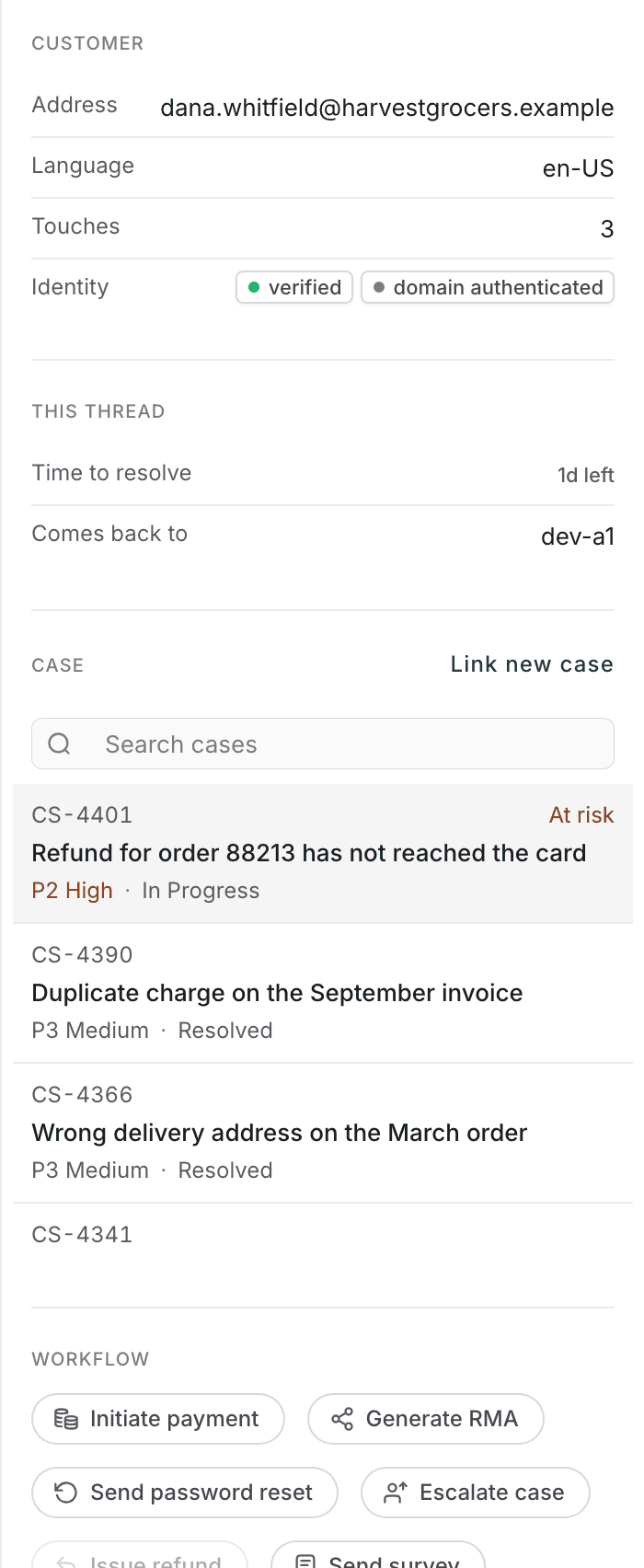
Customer
| Email address | The address this thread is with. |
| Language | What was detected, or not detected. |
| Touches | How many times this thread has gone back and forth. |
| Identity | Whether the sender checks out. |
The identity chips
Two facts, kept apart on purpose:
unverified sender / verified — whether this sender is who they claim to be, for the purposes of what you and the AI are allowed to do for them.
domain authenticated — the mail genuinely came from that company's mail system.
The second does not imply the first. Domain authentication proves the sending domain is genuine and says nothing about who is at the keyboard. Anyone with an account at that company passes it. Only the verification chip ever raises what may be done on this thread.
This thread
Appears when the thread has either of these:
| Time to resolve | The second deadline — how long until the thread must be finished, not just replied to. Shown the same way as the tag on a row: left or overdue. |
| Comes back to | The agent this thread is stuck to. A returning customer is offered to whoever handled them last. |
This one is always the resolution clock, whichever stage the thread is at. The subject bar shows whichever deadline is still running, so before you reply the two are different — the bar counts down your first reply, this counts down the whole thread. Once your reply is out they are the same clock.
Case
Your organisation's CRM, for this customer, resolved by their email address. It is the same case panel the Voice and Chat desks show — the same cases, in the same shape, whichever channel the customer used.
You can open a case, and link this thread to one. Link new case searches every case rather than only this customer's, which is the answer when nothing matches.
The section renders nothing at all when no CRM is connected.
Workflow
The same row the Voice and Chat desks carry, against this thread: the actions you can run without leaving it — issuing a refund, raising a return, sending a reset link, promising a callback, opening a case.
Select one to run it. The result appears under the row, and stays there so you can tell the customer what happened.
A greyed-out workflow is unavailable for a reason, and the reasons differ. Hover one and it says which. Two you will meet:
- Select a case first — the workflow acts on a case. On this desk the thread usually has one, so Escalate case is live here while the same chip is greyed on a call with nothing linked.
- This CRM cannot run automations — a limit of the CRM behind the row, not something you can satisfy. Linking a case will not enable it.
Your row may differ. Workflows are configured per organisation, so yours may show more, fewer or differently named actions than the picture.
History
Everything this customer has contacted you about before, newest first, across every channel — calls, chats and earlier mail together.
Each row says the channel and how long ago, and underneath it what the contact was about: the subject of a previous email, its intent, how it ended.
The most recent contact — when it was recent enough to matter — is marked just before this email. That row is usually the reason they are writing.
Read this before replying to anything that sounds annoyed. "They called twenty minutes ago" is the single most useful thing on this pane, and it is the row at the top.
"No prior contact." means this is the first you have heard from them.
It keeps itself current
The pane refreshes on the same timer as the thread. A case raised on another channel while you are mid-reply appears here without a reload — which is much of the reason it is worth having on screen at all.