Reading a thread
The trail, collapsed messages, the headers behind Show details, formatted and plain text, and internal notes.
The middle column, from the top down.
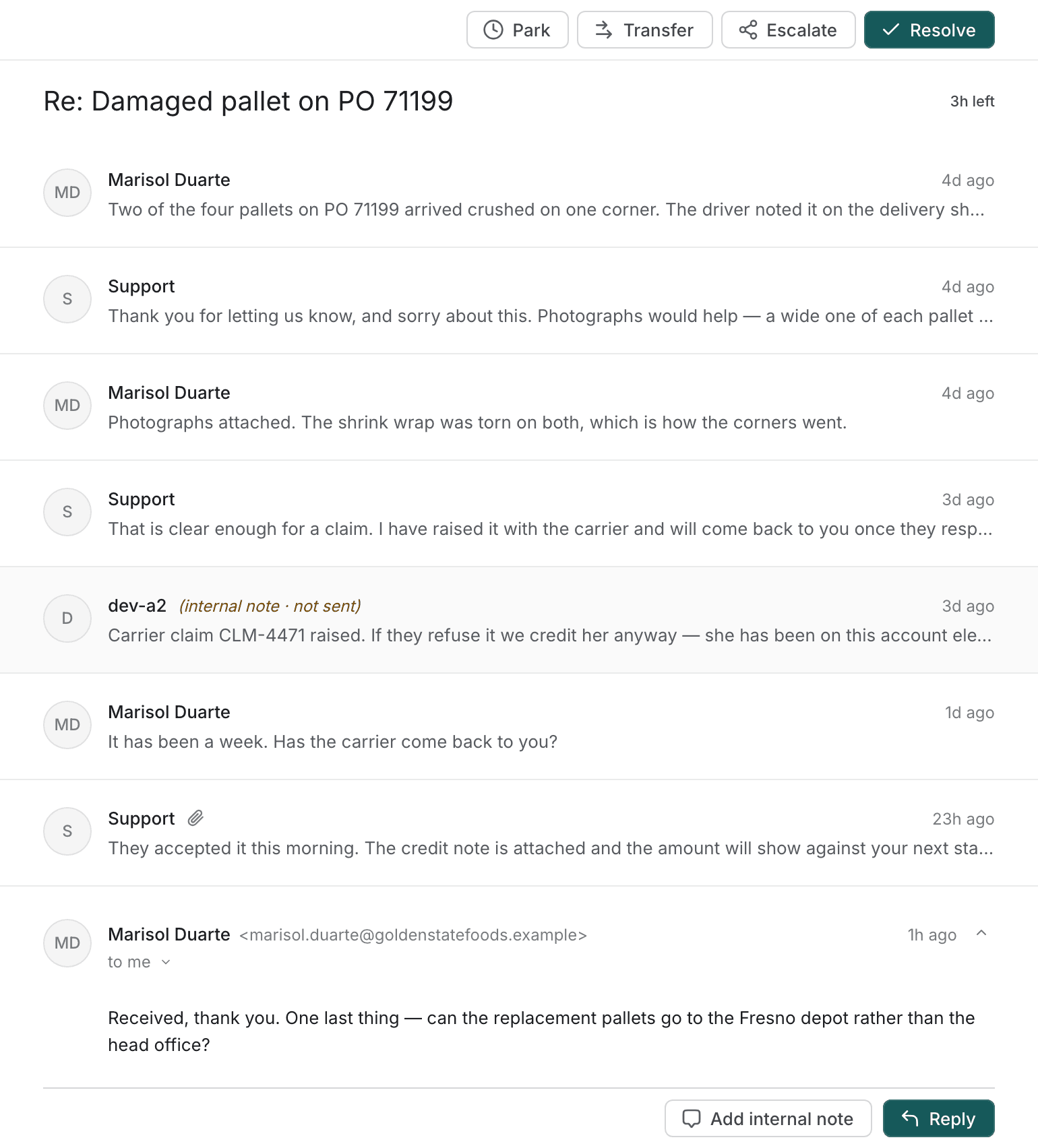
The toolbar
Along the top are the things you can do to this thread — and only the things this thread can actually be asked to do. A resolved thread does not offer Resolve. What each one means is on Moving a thread on.
When there is nothing to offer, the bar says what the thread is doing instead:
| Just arrived. | Triage decides where it goes next. |
| The AI is working on this one. | Nothing for you yet. |
| Resolved. | It reopens by itself if the customer writes back. |
| Closed. | Nothing more happens on this thread. |
| Suppressed | Replies to this sender are not sent. |
The subject bar
Under the toolbar: the subject, and beside it the chips that apply to the whole thread — its state, its running deadline, and any of Escalated, Last reply bounced or No auto-reply.
"With you" is not drawn. The thread is open on your desk under a toolbar offering Park and Resolve; a chip saying so would be the screen telling you where you are standing. Every other state is shown, because each says something the rest of the screen does not.
The trail
The newest message is open and everything above it is collapsed to a single line — who it was from, its first words, and when. This is the convention every mail client shares, for the reason they share it: the message that needs answering is the one at the bottom.
Select any collapsed row to open it. Select an open message's header — or its caret — to close it again.
A collapsed row still carries the three things worth seeing without opening it: a paperclip if it has attachments, (sent automatically) if it was an auto-acknowledgement, and (internal note · not sent) if it never went to the customer.
Internal notes in the trail
Notes your team left sit in the trail alongside real messages, and they are marked twice: a grey background, and the words internal note · not sent beside the author's name.
Both are deliberate. A note read as a sent message is the one misreading on this desk a customer pays for, so it never rests on the colour alone — the label is there whether the message is open or collapsed.
Show details
The small control in a message's header opens the headers you check rather than read:
| Row | What it is |
|---|---|
| From | The full address, not the display name. |
| To | Every recipient. |
| Cc | Anyone copied. |
| Bcc | A count only — "2 addresses, not shown". |
| Sender checks | Whether the mail is really from where it says. |
Sender checks
On inbound mail, three results — and each has three possible values, not two:
SPF pass / DKIM pass / DMARC pass | The check ran and passed. |
SPF fail / DKIM fail / DMARC fail | The check ran and failed. |
… not checked | The check did not run. Not a pass. |
DKIM signed appears on mail we can confirm was signed.
These prove the domain, not the person. A passing DMARC means the mail genuinely came from that company's mail system. It says nothing about who was at the keyboard, and it is not a reason to skip whatever identity check your process asks for.
Formatted and plain text
Messages open as plain text, with a Show formatted link under them.
That is on purpose. Plain text is what the AI read, and it is the version with any invisible content stripped out — so it is the rendering you and the model agree on. Formatting is a deliberate second look, for when the layout of the customer's mail is part of what they are telling you.
Internal notes are the exception: they open formatted and stay that way. A note was written in this desk's own editor, so there is nothing to be protected from and nothing to choose between.
If the formatted version cannot be loaded, the message says so rather than appearing blank.
Quoted history
When a message quotes everything that came before it, that block is folded away behind Show quoted history. Most of the time it is the thread you are already looking at. Open it when you need to see exactly what the customer was replying to.