Moving a thread on
Park, Transfer, Escalate and Resolve — what each one does to the thread, and what none of them do to the deadline.
Four ways a thread leaves your active work, and they are not interchangeable.
The four
| What is true afterwards | |
|---|---|
| Park | Stays yours, but stops counting as work you are actively on. The auto-reply clock keeps running. |
| Transfer | Hands the thread to another agent or queue, with an internal note. |
| Escalate | Hands the thread to someone senior, with an internal note. |
| Resolve | Closes the thread. A reply from the customer reopens it. |
Each button carries that sentence, because the words alone do not separate them: Park and Resolve both end with the thread off your active list, and Transfer and Escalate both hand it to a person.
None of these moves the deadline. A thread transferred with twenty minutes left arrives with twenty minutes left. The SLA clock belongs to the customer's mail, not to whoever is holding it.
Which buttons you see
Only the ones this thread's state actually allows.
| State | Offered |
|---|---|
| Queued | Take |
| With you | Park, Transfer, Escalate, Resolve |
| Awaiting approval | Transfer, Escalate, Resolve |
| Awaiting customer | Transfer, Escalate, Resolve |
| New, AI working, Resolved, Closed, Suppressed | Nothing — the bar says what the thread is doing instead |
Nothing takes a thread out of Resolved, Closed or Suppressed by hand. A resolved thread reopens when the customer writes back; closed and suppressed are final.
Park
Parking is for "I am waiting on them." The thread stays in Mine — you will get it back — and it stops taking one of your attention slots, so routing can give you something else.
This is why the desk counts what you own separately from what you are working on. See Getting started.
Transfer and Escalate
Two controls rather than one "Move" menu, because they are two different statements: a transfer says this belongs to a different desk, an escalation says this one needs someone senior.
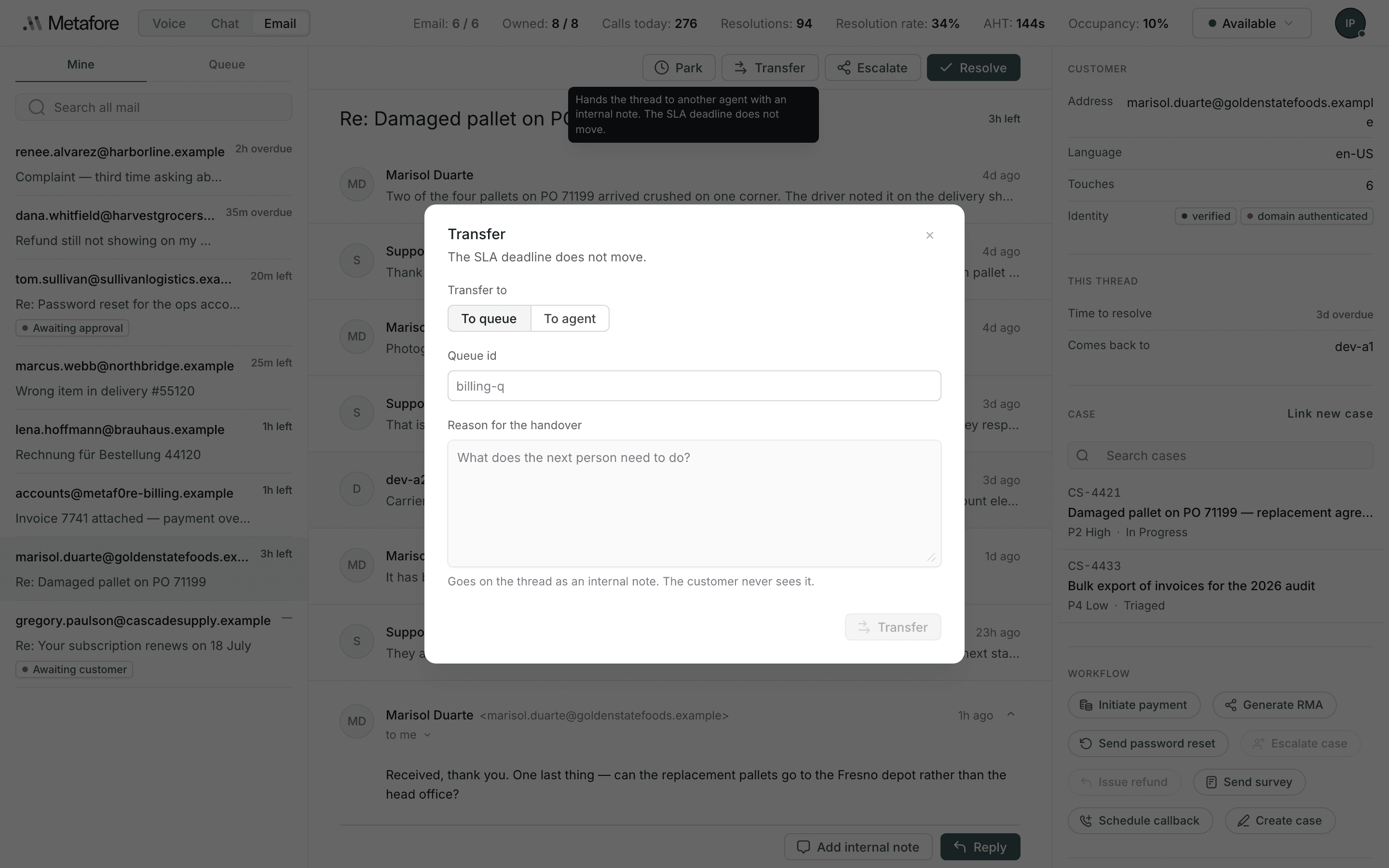
Both open a form over the thread — over it, not above it, so the message you are describing stays on screen while you describe it.
Where it goes
A transfer asks for a destination first:
- To queue — type the queue, like
billing-q. - To agent — pick from the list of agents signed in for email.
Agents who cannot take the thread are shown but not selectable. Agents the router would rather not give more work to are shown and selectable — giving a fifth thread to your most experienced colleague is a call somebody can make deliberately. Either way they are listed, so "why is Marcus not here?" is never a dead end.
If nobody is signed in for email, the list says so.
An escalation does not ask where. Where an escalation goes is what the word means.
The reason
Required, on both, and it is a real field rather than a dropdown of canned choices.
| The question it asks | |
|---|---|
| Transfer | What does the next person need to do? |
| Escalate | Why does this need someone senior? |
Goes on the thread as an internal note. The customer never sees it.
Write it for the person opening this cold. They get the thread and your note, and nothing else. "Wrong department" — which is what every canned list collapses to within a month — tells them nothing they could not already see.
Resolve
Resolve closes the thread as far as you are concerned. It is not permanent: if the customer writes back, the thread reopens and comes to you.
You can also resolve and send in one action — Send and resolve, from the caret beside Send reply. See Replying.
Coming back to you
A thread you have worked sticks to you. The context pane shows it as Comes back to, and it is the answer to "why did this one arrive at my desk again" — the router offers a returning customer to whoever handled them last.