The team roster
Reading the table — statuses, shift figures, customer emotion, resolution rate and adherence.
The roster is one row per agent, refreshed every two seconds. It is designed to be read at a glance: the columns that need attention are coloured, and everything else stays plain.
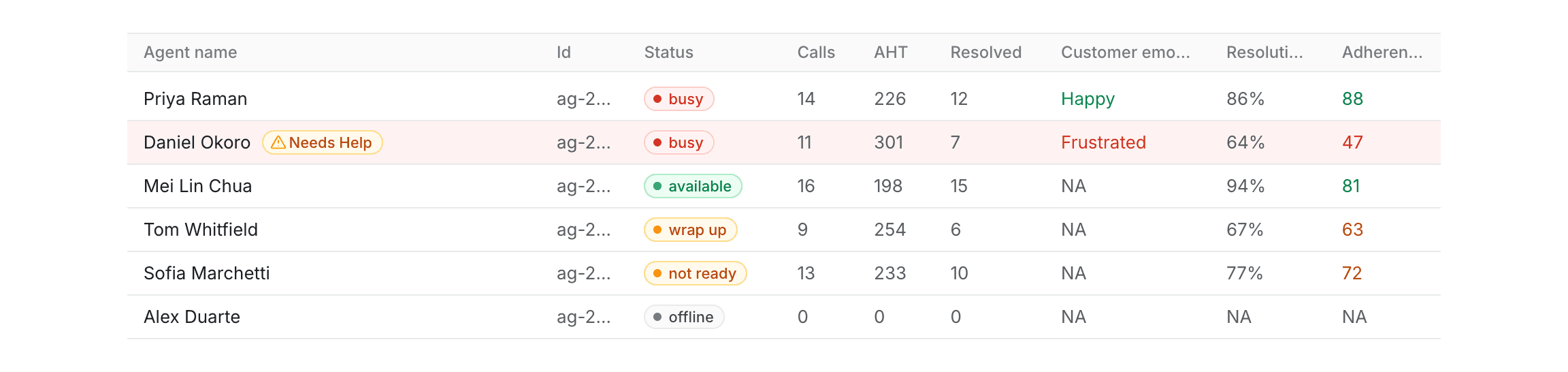
The columns
| Column | What it shows |
|---|---|
| Agent name | The agent's name, or their ID where no name is configured. A Needs Help chip appears here when they have asked for a supervisor. |
| Id | The agent's identifier, used when raising a fault or discussing a specific person with an administrator. |
| Status | What the agent is doing right now. |
| Calls | Calls handled so far in the current shift. |
| AHT | Average handle time for the shift, in seconds. |
| Resolved | How many of those calls were marked resolved. |
| Customer emotion | The mood of the caller on the agent's current call. |
| Resolution rate | Resolved as a share of calls handled. |
| Adherence | How closely the agent's calls match your team's learned benchmark. |
AHT has no unit on screen. The figure is seconds — 226 means just under four minutes. It covers talk, hold and wrap-up, the same definition agents see on their own screen.
Statuses
The status pill is colour-coded so you can scan the column rather than read it.
| Status | Colour | Meaning |
|---|---|---|
| available | Green | Waiting for a call. Calls can be offered. |
| busy | Red | Connected to a customer. |
| wrap up | Amber | Finishing after-call work. No new call will be offered. |
| not ready | Amber | On a break or otherwise unavailable. |
| offline | Grey | Signed off, or never signed in today. |
Red does not mean a problem. On this screen red means on a call — an agent handling customers all shift will show red most of the time. Grey and amber are the colours that mean no calls are being taken.
Customer emotion
This column reads the tone of the caller on the agent's current call, so it
only has a value while the agent is connected. Every other row shows NA.
- Green — the caller sounds positive: happy, calm, satisfied.
- Red — the caller sounds unhappy: frustrated, angry, upset.
- Plain — anything in between, such as neutral or concerned.
A red reading is the earliest signal you get. It usually appears before the agent asks for help. A call showing red alongside a long duration or a low adherence score is the one worth listening to first — see Monitoring a call.
The column shows NA for any agent who is not on a call, including one who was
on a call moments ago. It is a live reading, not a record of the last call.
Resolution rate and adherence
Both are per-agent measures of how the shift is going, and both show NA until
there is enough to calculate from.
Resolution rate is resolved calls as a share of calls handled, as a whole
percentage. It reads NA before the agent's first call of the shift.
Adherence compares the agent's calls with the patterns found in your team's most successful ones. It is colour-coded:
| Score | Colour | Reading |
|---|---|---|
| 75 and above | Green | Working in line with the team's successful calls. |
| 50 to 74 | Amber | Some divergence — worth a look, not an intervention. |
| Below 50 | Red | Materially different from the benchmark. |
NA | — | Not enough calls yet to produce a score. |
The benchmark is your own team's. It is learned from calls your agents handled well, not a fixed standard set elsewhere, and it moves as the team's results move. Adherence refreshes every 30 seconds rather than every 2.
Adherence is not a performance rating. A new starter and an agent working a difficult queue will both sit lower without either doing anything wrong. Treat a red score as a prompt to listen to a call, not as a conclusion.
Rows that ask for help
When an agent selects Ask Supervisor on their call, their row is tinted and a Needs Help chip appears next to their name.

The chip stays until the request is picked up or the call ends. Picking it up is covered in Responding to help requests.
Which rows you can open
Selecting a row opens the detail panel, but only where there is something to show:
- An agent on a call — opens the panel with their live call.
- An agent asking for help — opens the panel, whether or not they are connected.
- Anyone else — the row does not respond. There is no detail for an idle agent.
Right-clicking a row for an agent on a call opens a shortcut menu that takes you straight to listening, coaching or joining. See Monitoring a call.
You will not see your own row. Where a team is configured, supervisors and team leads are excluded from the roster, so you cannot open a panel on yourself.