Getting started
Opening the Supervisor desktop, what is on the screen, which agents you see, and setting up audio.
The Supervisor desktop is one screen: a list of your agents, and a panel that opens over it when you select one. Everything else — listening to a call, coaching, joining in — happens from that panel.
Signing in and opening the desktop
Sign in to the console with your usual work account. The Supervisor desktop is at the Supervisor entry in the navigation.
The desktop requires the supervisor role. If your account does not have it, the page shows Access denied — supervisor role required instead of the roster. Ask an administrator to add the role; it is not something you can grant yourself.
What is on the screen
The page has two parts.
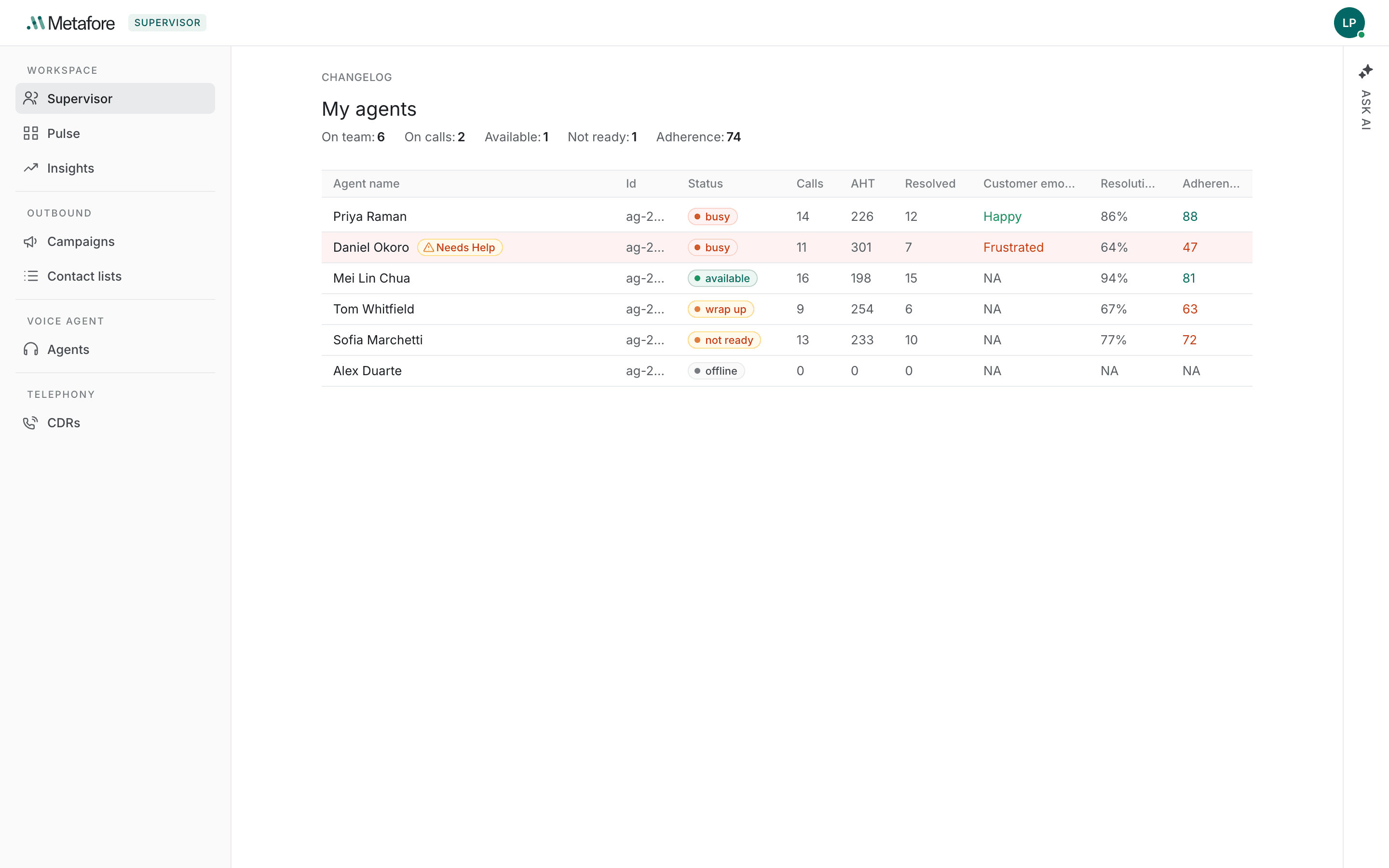
The header carries the counts for your team, recalculated as the roster updates:

| Count | What it means |
|---|---|
| On team | Agents visible to you in the roster below. |
| On calls | Agents currently connected to a customer. |
| Available | Agents waiting for a call. |
| Not ready | Agents on a break or otherwise unavailable. |
| Adherence | Your team's overall score against its learned benchmark. Shown only once there is a score to show. |
The roster is the table beneath it — one row per agent, described in The team roster.
Opening an agent
Select an agent's row to open the detail panel. Only rows for agents who are on a call or who have asked for help can be opened — there is nothing to show for an agent sitting idle, so those rows do not respond.
You can also right-click a row for an agent on a call to go straight to listening, coaching or joining, without opening the panel first. See Monitoring a call.
Which agents you see
Two things decide the list, and it is worth knowing which applies to you.
- If you have a team configured, you see the agents assigned to you — including those currently offline, so you can tell who has not signed in. Other supervisors and team leads are excluded, and so are you: you cannot monitor your own row.
- If you do not have a team configured, you see every agent signed in to your organisation.
You never see agents belonging to another organisation, under either arrangement. If the list looks wrong — too many agents, too few, or people who are not yours — ask an administrator to check your team assignment.
How often the screen updates
You do not need to reload the page. It refreshes on its own:
| What | How often |
|---|---|
| The roster and header counts | Every 2 seconds |
| The live transcript in an open panel | Every 2 seconds |
| Adherence scores | Every 30 seconds |
Adherence updates more slowly than everything else on purpose — it is a heavier calculation and a score that moves by the second would not be meaningful.
Setting up audio
Listening to a call needs working output — a headset. Coaching or joining a call also needs a working microphone, and your browser's permission to use it.
- Use a headset, not your computer's speakers. On a call you join, speaker audio can be picked up by your own microphone and heard by the customer.
- Allow microphone access when your browser asks. It only asks the first time you coach or join a call.
Listening never asks for your microphone. Silent monitoring publishes no audio at all, so no permission prompt appears. You will only be asked when you do something that puts you on air.
If your microphone is blocked or missing, coaching and joining cannot start. The panel tells you what went wrong and keeps you listening to the call instead, so you do not lose the call while you fix it. See Reference.
When the roster is empty
If no agents are signed in, the table reads No agents on your team are signed in. That is the normal out-of-hours state, not a fault.