Receiving calls
The incoming call window, the routing information it carries, and the twenty-second window in which to accept.
From the moment a call is offered to you until you are connected.
Incoming call notification
While your status is Available, calls are offered to you automatically. You do not select calls from a list and you cannot dial out from this screen. When a call is offered, a window opens over the whole screen so it cannot be missed.
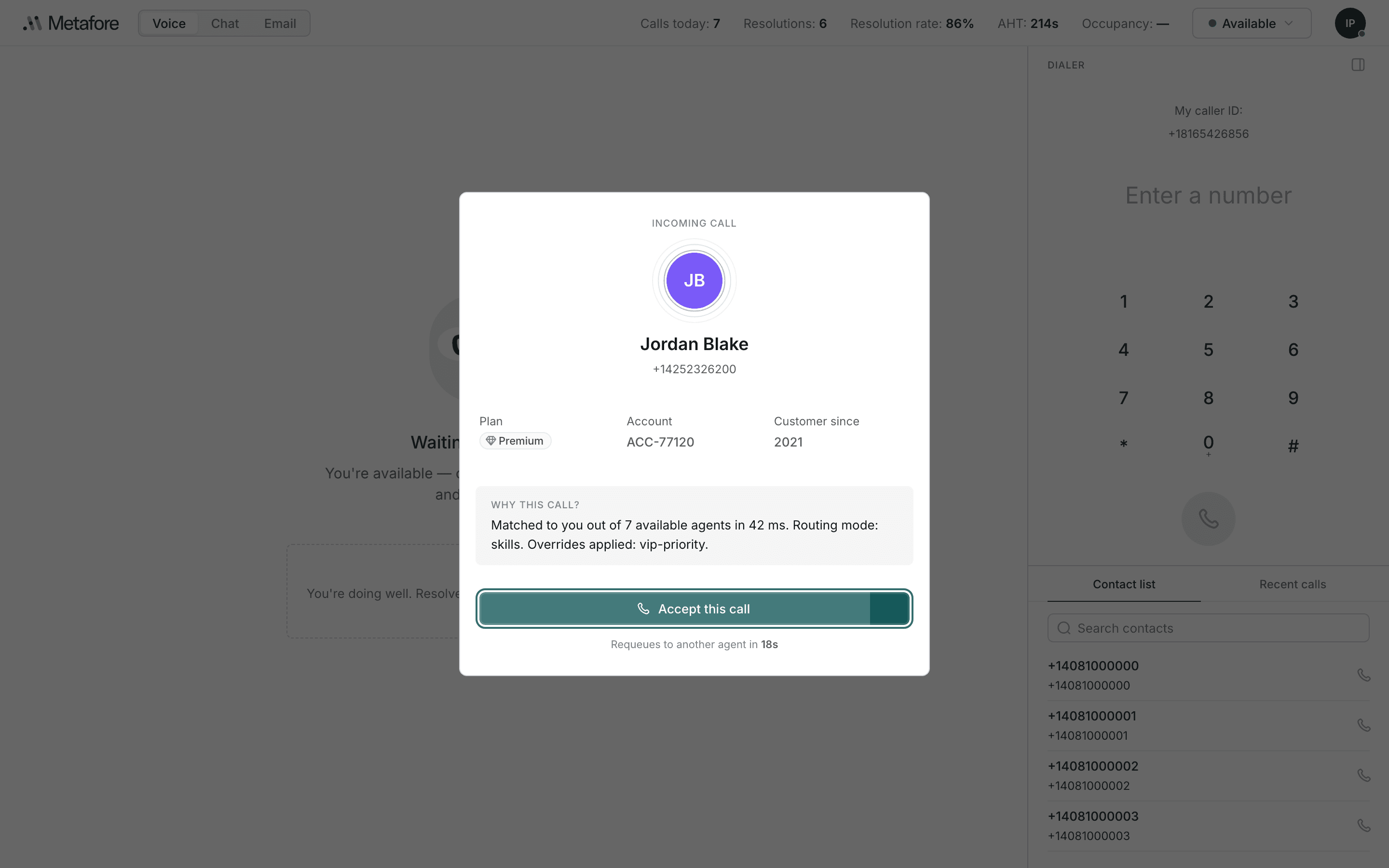
The window shows, in order:
- The caller — initials, name and number. If the number is not recognised, the window shows the number alone.
- Three facts about them — which facts appear depends on what your organisation has configured, commonly plan, account number and length of relationship. If none are available, routing details are shown instead.
- Why this call reached you — see below.
- The accept control and the time remaining.
To take the call, select Accept this call. The window closes and the call screen opens.
There is no decline control. The window offers one action. If you cannot take the call, letting the timer run out is recorded and visible to your supervisor. If you are not able to take calls, set your status to Not ready instead.
Routing information
Under Why this call? the window explains how the call was matched to you. It is a plain sentence, and it changes from call to call.
Matched to you out of 7 available agents in 42 ms.
Routing mode: skills. Overrides applied: vip-priority.| Part | What it tells you |
|---|---|
| Available agents | How many agents were eligible when the call was routed. A low number means few colleagues were free. |
| Time in milliseconds | How long the routing decision took. Shown for transparency; it needs no action. |
| Routing mode | The method used to choose you — for example matching on skills. |
| Overrides applied | Any rule that changed the normal order, such as priority for an important customer. |
Not every call carries all four parts, and some carry none. When no routing information is available, the section is hidden rather than left empty.
Accept-by window
You have twenty seconds to accept an offered call. The remaining time is
shown twice: as a shaded bar that empties across the accept control, and as a
count in words beneath it — Requeues to another agent in 19s.
If the time runs out
The call is taken back and offered to a different agent, with its priority raised so the caller does not lose their place. Three things follow:
- You are excluded from that call. It will not be offered to you again, even if you become free.
- The caller waits longer, because the call has to be routed a second time.
- The event is recorded against the call and is visible to your supervisor.
The call is not answered for you. Nothing is connected automatically when the timer expires. If you are at your desk and able to take the call, accept it — waiting for the timer is never the neutral option.
Stepping away? Set Not ready before you leave your desk. Calls are then not offered to you at all, and nothing is recorded against you.
Active call display
Once you accept, the screen fills with the call. Your status changes to Busy automatically and no further calls are offered until you finish.
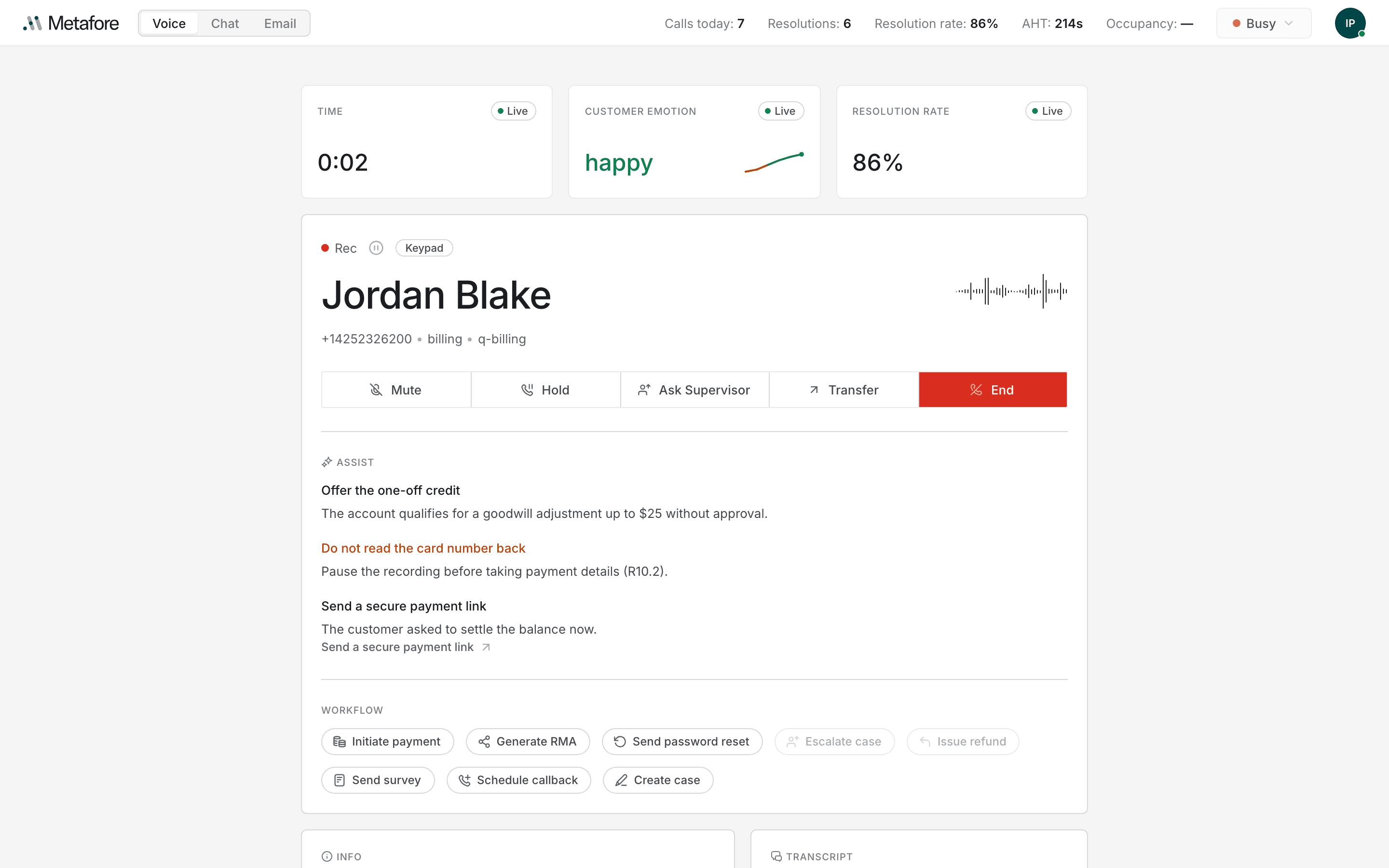
- Across the top — live measures. Call duration, the customer's mood as they speak, and your resolution rate. Each is marked
Livewhile it is updating. - In the middle — the caller and your controls. Recording state, the caller's name and number, and the five call controls.
- Beside the name — the moving bars show that audio is flowing. They stop when you mute or hold.
Below the controls, the panels fill in as the call proceeds — suggestions, workflow buttons, the customer's details and a live transcript. These are covered in Call information panels.
Customer emotion reads the tone of the conversation and updates continuously.
A shift toward frustrated is worth acting on early — acknowledge the problem,
or bring in a supervisor before it escalates.