Call information panels
Assist suggestions, workflow shortcuts, customer details, the live transcript, sentiment, and coaching.
These panels appear below the call controls and fill in as the call proceeds. None of them require action; they are there to be read while you talk. All of them clear when the call ends.
Assist
Suggestions based on what is being said and on the customer's record. Each has a short heading and a line of detail.

Some suggestions carry a link that starts the matching workflow, so you do not have to find it yourself in the list below.
Suggestions are advice, not instructions. Assist does not know everything about the caller or your organisation's current policy. Check anything that commits money or makes a promise before you act on it, and follow your own judgement if it conflicts with what you know.
Between calls, and at the start of one, the panel reads Suggestions appear here during a call. That is normal.
Workflows
Shortcuts to the tasks you carry out most often, so you do not have to leave the call screen to start them.

Select a workflow to start it. The result appears beneath the row — a confirmation if it succeeded, or a message if it did not. Both stay on screen so you can tell the caller what happened.
A greyed-out workflow is unavailable for a reason, and the reasons differ. Hover one and it tells you which. The two in the picture above are not the same case:
- Escalate case reads Select a case first — it acts on a case, and this call has none linked yet. Link one and it lights up. On the Email desk, where the thread already has a case, this one is enabled.
- Issue refund reads this CRM cannot run automations — a limit of the CRM behind it, not something you can satisfy. Selecting a case will not enable it.
Your list may differ. Workflows are set up per organisation, so yours may show more, fewer or differently named shortcuts than the example above. If a workflow you need is missing, ask your supervisor.
Starting a payment? Pause the recording before entering any card details, whether you type them or the caller reads them aloud. See Recording and compliance.
Customer information
The Info panel, at the lower left, holds what is known about the caller. It appears as the call connects, so you can open with their details rather than asking for them.
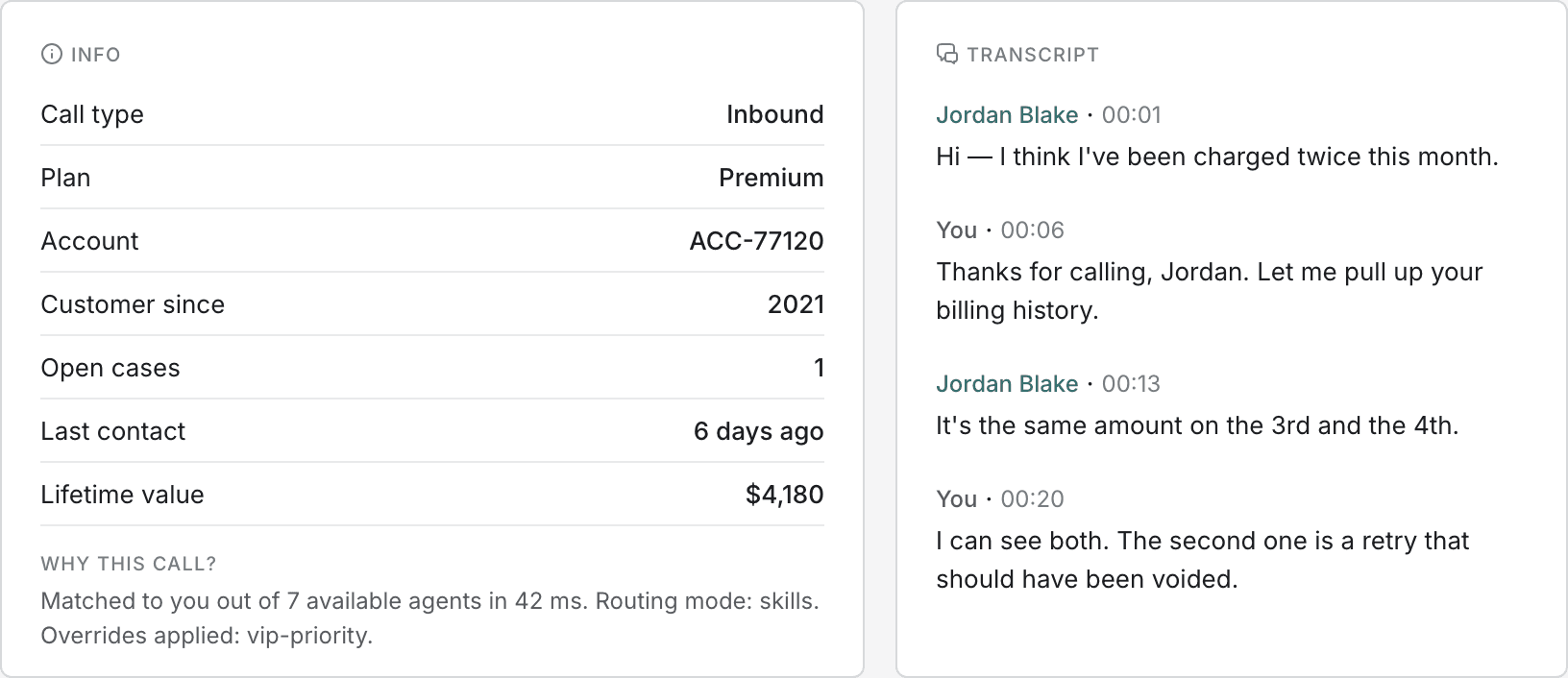
Which fields appear is configured by your organisation and can differ by team. Typical fields are the customer's plan, account number, how long they have been a customer, and any open cases.
Beneath the fields, Why this call? repeats the routing explanation from the incoming call window, so it remains available after you have accepted.
When the panel is sparse. If your organisation has not configured customer fields, the panel falls back to what the call itself carries — the caller's number, what they appear to be calling about, and the queue they came through. An unrecognised caller shows little either way; ask them to confirm their details as usual.
Confirm identity properly. Details shown here are matched from the number the caller is ringing from. That is not proof of who they are. Follow your organisation's identity checks before discussing an account or making changes.
Live transcript
The Transcript panel writes down the conversation as it happens. Each entry shows who spoke — the caller by name, and you as You — and how far into the call they said it.
It is useful for checking a detail you missed without asking the caller to repeat themselves, such as a reference number said quickly.
| What you see | Why |
|---|---|
| Panel stays empty | The call is not being transcribed — either recording is paused, or the call is not recorded at all. |
An entry marked ·redacted | Something that looked like sensitive data was removed automatically. The full text is not stored. |
| Words arrive a moment late | Transcription runs slightly behind the conversation. This is expected. |
Transcription is not perfect. Names, reference numbers and unusual words are sometimes misheard. Confirm anything important with the caller rather than relying on the transcript alone.
Customer sentiment
The Customer emotion card, top centre, reads the tone of the caller's speech and updates continuously through the call. It shows a word for the current mood and a line tracing how it has moved.
The line is coloured by your organisation's own thresholds: green while the call is going well, amber as it slips, red when the caller is unhappy.
Acting on a downward trend
- Acknowledge it. Name the problem and say what you are doing about it.
- Avoid holds. A caller who is already frustrated takes silence badly. If you must, say how long.
- Bring in help early. Request a supervisor before the call deteriorates rather than after.
It measures tone, not fault. A red reading does not mean you handled the call badly. Some callers arrive angry. It is a prompt to change approach, not a score against you.
Coaching and adherence
The Coaching panel is about you rather than the caller. It appears when there is something to show and stays between calls, because it is not tied to any single one.
Your adherence score
A number from 0 to 100 describing how closely your calls match the patterns found in your team's most successful ones. Beneath it, up to four bars show individual behaviours and how far along each you are.
The score is colour-coded: green at 75 and above, amber from 50 to 74, red below 50.
It is learned from your own team. The benchmark comes from calls your colleagues handled well, not a fixed standard imposed from outside. It moves as the team's own results move.
Coaching prompts
Short, specific suggestions, sometimes with a sample phrase to try. Select Got it to dismiss one once you have read it; it does not come back.
Not visible to your supervisor at present. Your adherence score currently appears on your screen only. A recent change removed it from the supervisor's view, so a supervisor discussing your performance may not be looking at the same number. Raise it with them if it matters to a conversation about your calls.