Call completion
Wrap-up and disposition, the thirty-second limit, the waiting screen, and taking breaks.
After-call work and the states between calls: recording what happened, the time limit for doing so, the waiting screen, and how to take a break.
Wrap-up and disposition
When a call ends — whether you ended it or the caller hung up — a wrap-up window opens. It asks two things: what the call was about, and anything worth noting. Your status is Wrap-up while it is open, so no new call arrives on top of it.
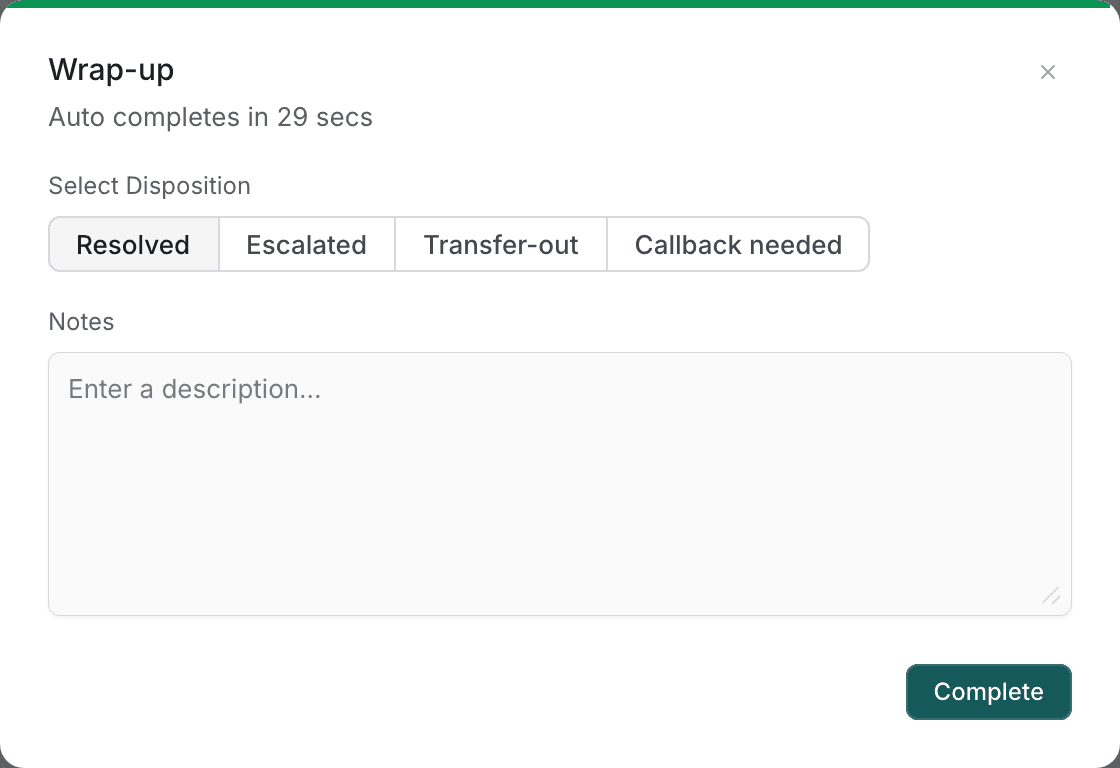
- Choose a disposition from the four options.
- Add notes if there is anything the next person should know.
- Select Complete.
| Disposition | Choose it when |
|---|---|
| Resolved | The caller's problem is dealt with and needs no follow-up. |
| Escalated | You passed it to someone more senior, or raised it for review. |
| Transfer-out | You transferred the caller elsewhere and the outcome is no longer yours. |
| Callback needed | Someone has to ring the customer back. |
Writing useful notes
Notes are read by whoever picks the customer up next, and by anyone reviewing the call later. Write what a colleague would need to continue the conversation:
- What the customer wanted, in their terms.
- What you did, including anything you promised and by when.
- Anything unresolved, and what should happen next.
Notes matter more on unrecorded calls. If the call was not recorded or you paused during it, your notes are the only record of that part of the conversation. Write more, not less.
Automatic wrap-up completion
Wrap-up lasts thirty seconds. A bar across the top of the window drains as the time runs down. When it reaches zero the wrap-up completes on its own and you return to waiting for calls.
Nothing you have entered is lost. Automatic completion submits whatever you have selected and typed at that moment. If you chose a disposition and wrote half a note, that is what is saved — the window does not discard your work or reset to a default.
The disposition starts on Resolved. If a call was anything other than resolved, change it early rather than leaving it until the end of the thirty seconds, so a lapsed timer cannot record the wrong outcome.
If you need longer, the limit is fixed and cannot be extended from this screen. For notes that take longer than thirty seconds, complete the wrap-up with a brief note and set yourself Not ready to finish writing before taking the next call.
Idle state
Between calls the screen shows your current state and a short tip. What it says depends on your status, so a glance tells you whether calls can reach you.
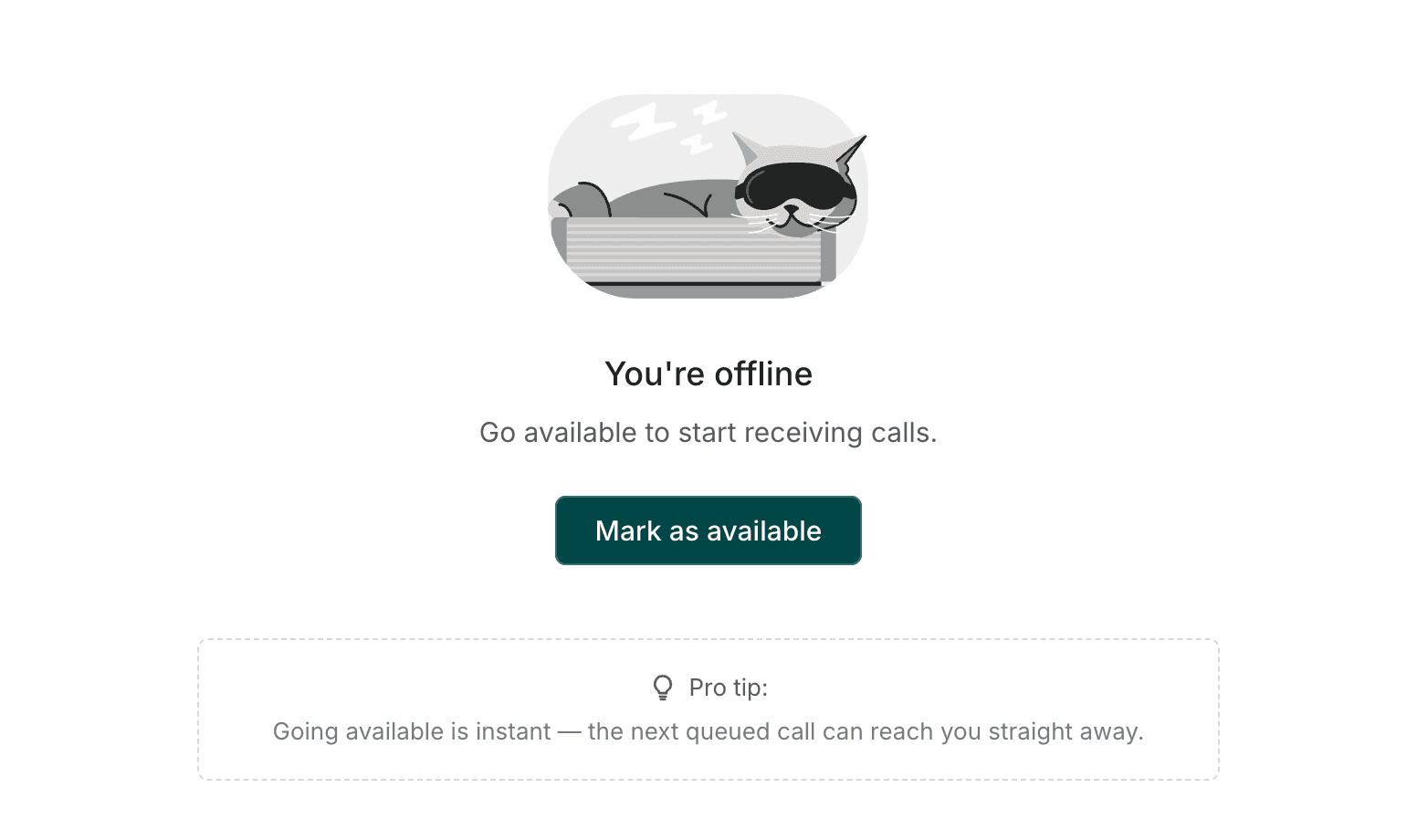
| Your status | The screen says | Action offered |
|---|---|---|
| Available | Waiting for your next call | None — calls will arrive on their own. |
| Not ready | You are currently not ready | Mark as available |
| Offline | You are offline | Mark as available |
| Busy | You are busy on other work | None. |
Where an action is offered, selecting it sets you available immediately — the same as using the status control in the top bar.
The tip changes. The panel at the bottom shows a different suggestion from day to day, and sometimes refers to your own figures — for example how many more calls you would need to resolve to reach the next percentage point. It is informational and needs no action.
Breaks and availability
Two statuses stop calls reaching you, and they are not interchangeable. Choose by how long you will be away and whether your shift is over.
| Not ready | Offline | |
|---|---|---|
| Use for | Breaks, lunch, training, admin | End of shift |
| Reason recorded | Yes — you are asked for one | No |
| On the team board | Yes, with your reason | Shown as signed off |
| Calls reach you | No | No |
Taking a break
- Finish any wrap-up in progress.
- Set your status to Not ready and give a short reason.
- On returning, set Available. The next queued call can reach you straight away.
Do not rely on closing the tab. Closing the browser does not sign you out or set you offline. Set your status before you leave, or calls may continue to be offered to a desk nobody is sitting at.
Why the reason is asked for. Break reasons let your organisation tell planned time away from unexpected gaps. A short, honest label — break, lunch, training — is all that is needed.