Call controls
Mute, hold, requesting a supervisor, transferring a call, sending keypad tones, and ending a call.
The controls available while a call is connected: five buttons beneath the caller's name, and the keypad beside the recording indicator.

All five are unavailable until a call is connected, and each is briefly unavailable while the action it started is being carried out, so a second press cannot send the instruction twice.
Muting the microphone
Select Mute to stop the caller hearing you. You continue to hear them. Select the same control, now labelled Unmute, to speak again.

Two further signs confirm the state: the control is highlighted, and the moving bars beside the caller's name stop, because no audio is leaving your microphone.
Mute is not hold. A muted caller hears silence, not music, and may assume the line has dropped. For anything longer than a few seconds, use Hold.
Placing a call on hold
Select Hold. The caller hears hold music and cannot hear you. The control becomes Resume; select it to return.
While a call is on hold, the time it has been waiting is shown next to the call duration, so you can see at a glance how long the caller has been left.
Say that you are putting the caller on hold and roughly how long you expect to be. Check back rather than leaving them waiting in silence about the delay.
Requesting supervisor assistance
Select Ask Supervisor to signal that you need help. The call is not interrupted, the caller hears nothing, and you stay on the line.
The control reads Requested for about four seconds so you can see the request went out, then returns to its usual label.
What the flash means. Requested confirms only that the request was sent. It does not mean a supervisor has seen it or is on their way, and it clears whether or not anyone responds.
When the control is unavailable
It cannot be selected in three situations:
- No call is connected.
- During the four-second confirmation, to prevent a duplicate request.
- A supervisor has already joined the call. Hovering over the control explains which applies.
Supervisors may also listen without joining. A supervisor can monitor a call without becoming audible, in which case nothing changes on your screen. The control only becomes unavailable once they join the conversation.
Transferring a call
Select Transfer to open the transfer window. It asks three things in order: where the call should go, which destination, and how it should be handed over.
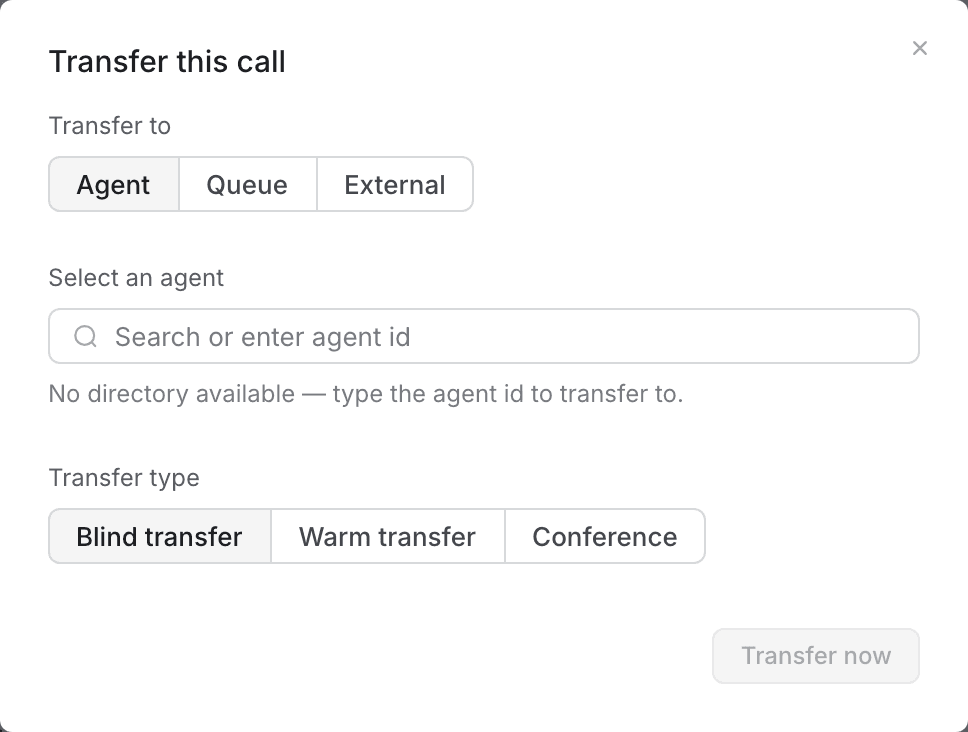
- Choose Agent, Queue or External.
- Enter the destination. Type an agent or queue identifier, or a full telephone number for an external transfer.
- Choose the transfer type.
- Select Transfer now.
| Type | What happens | Use it when |
|---|---|---|
| Blind transfer | The call is passed on immediately and you leave it. | The destination is obvious and needs no explanation. |
| Warm transfer | You speak to the receiving person first, then hand the caller over. | The caller's problem needs explaining, or you promised an introduction. |
| Conference | The third person joins and all three of you remain on the call. | You need to stay involved — for example while a specialist answers one question. |
The destination field accepts a typed identifier. Where your organisation has provided a directory, matching names appear as you type and you can select one; otherwise the field shows a note and you enter the identifier directly.
To abandon the transfer and return to the call, select the close control or press
Esc. Nothing is sent until you select Transfer now.
Sending keypad tones
Some destinations answer with an automated menu that expects you to press a number. Select Keypad, next to the recording indicator above the caller's name, to open a keypad.

Each key you select sends a tone to the far end. What you have entered appears beneath the keypad so you can check it. Select Keypad again to close it.
Entering card details? Pause the recording first. While recording is paused, digits are shown as dots rather than numbers, so a card number cannot be read from your screen by anyone nearby or captured in a screen recording. See Recording and compliance.
Ending a call
Select End, the red control at the right of the row. It is deliberately set apart from the others and coloured differently, because it cannot be undone.
The call disconnects immediately and the screen moves to wrap-up, where you record what the call was about.
If the caller hangs up first you do not need to select End. The call closes on its own and the screen moves to wrap-up, with a note that the caller disconnected.