Getting started
Signing in, reading the screen, setting your status, and preparing your audio.
Everything to do before your first call.
Signing in
Voice runs in a web browser. Your organisation has its own address, in the form
yourcompany.cc.ctrlagent.ai.
- Open the address in your browser.
- The sign-in page shows your organisation's name under the Metafore logo.
- Enter your username or email address and your password, then select Sign In.
- You arrive on the Voice tab.
If you cannot sign in
| Problem | What to do |
|---|---|
| Your details are rejected | Voice uses the same account as your other work tools. If the password fails there too, it needs resetting — contact your administrator. |
| The page will not load | Check the address is spelled correctly, including your organisation's name at the start. |
| You sign in but see no queues | Your account exists but has not been added to a team. Your supervisor can arrange this. |
Screen layout
A bar runs across the top of every Voice screen. It stays in place whether you are on a call or waiting for one.

Reading left to right:
- Tabs — switch between Voice, Chat and Email. Switching does not affect a call in progress.
No Email tab? It is shown unless your profile definitely excludes the email channel — so if it is missing, you are not set up for email. Ask an administrator to add the channel to your profile. The tab stays visible while that answer is still being fetched, so a brief appearance is not a glitch.
- Shift figures — your own totals for today. Reference defines each one. On a narrow window these are hidden to make room.
- Status — your current availability, and the control that changes it.
- Account — your profile and sign-out. The green dot shows you are connected.
Below the bar, the screen changes with the state of your call: a waiting screen when there is no call, an incoming call window when one arrives, and the call itself once you accept.
Setting your status
Your status decides whether calls reach you. No calls are routed to you until you set yourself available, and none arrive while you are on a break.
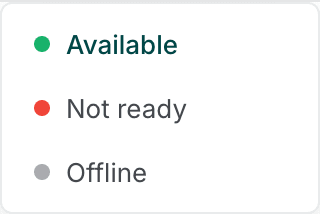
- Select the status control in the top bar.
- Choose Available, Not ready or Offline.
- If you choose Not ready, type a short reason — for example
break,lunchortraining— and confirm.
Two further statuses appear but cannot be chosen. The system sets them while a call is in progress, and the control is unavailable until the call is finished.
| Status | Set by | Calls reach you | Use it when |
|---|---|---|---|
| Available | You | Yes | You are at your desk and ready to take calls. |
| Not ready | You | No | A short break or training. You stay signed in and on your team's board. |
| Offline | You | No | Your shift has ended. |
| Busy | System | No | Applied automatically while you are on a call. |
| Wrap-up | System | No | Applied automatically after a call, while you complete your notes. |
Your supervisor sees this. Your status appears on your team's board as soon as it changes. There is no need to message them when you step away — setting Not ready with a reason tells them.
Closing the browser tab does not set you offline. Set Offline before you leave, or calls may continue to be offered to you and go unanswered.
Preparing your audio
Voice uses your browser's microphone and speakers. There is no audio setting inside Voice — the device is whichever one your browser is set to use, so this is configured once in the browser and the operating system.
Granting microphone access
The first time you accept a call, your browser asks for permission to use the microphone. Choose Allow. If you choose Block, the caller will not hear you.
To change it afterwards:
- Select the padlock or settings icon at the left of the browser address bar.
- Find Microphone and set it to Allow.
- Reload the page.
Choosing a headset
Connect your headset before you sign in, and set it as the default input and output device in your computer's sound settings. Voice follows that choice. If you connect a headset mid-shift, reload the page so the browser picks it up.
Test before your first call. Voice has no test-call facility. Confirm your headset works in another application before your shift, so a live caller is not the first time you find out it does not.
If the caller cannot hear you
- Check you are not muted — see Call controls.
- Check the microphone permission above.
- Check the headset is the default input in your sound settings, and that its own mute switch is off.
- Reload the page and accept the next call. If it persists, report it.