Handling a chat
Reading the conversation, sending a reply, and what the marks under your messages mean.
The middle column, where the conversation happens.
Reading the conversation
Messages run oldest at the top, newest at the bottom, the way every chat app does it. Who said what is shown by side and by colour:
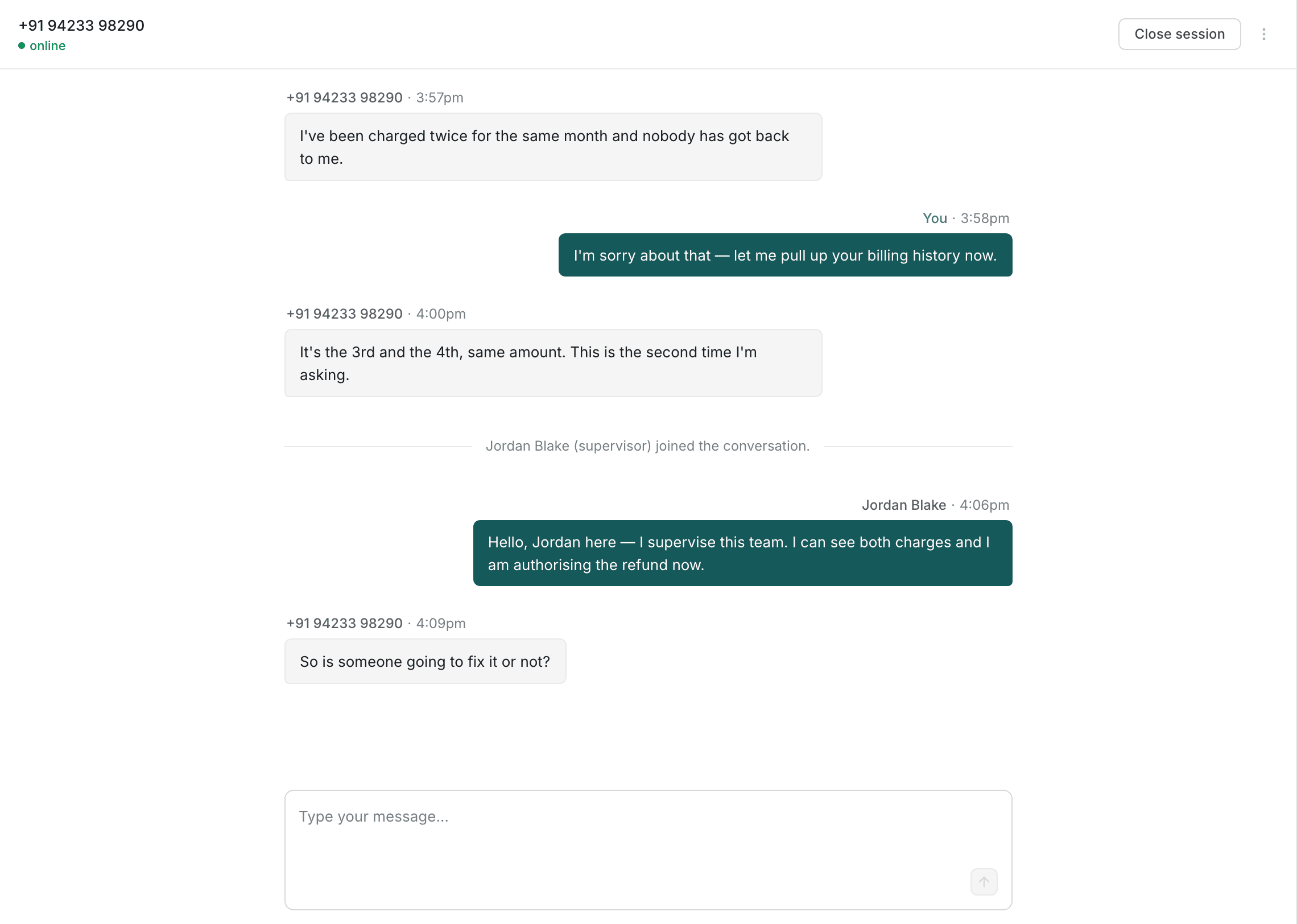
- The customer's messages sit on the left, on a pale ground.
- Your messages sit on the right, on a dark ground, labelled You.
- A colleague's messages also sit on the right, labelled with their name — so a supervisor who joins is never mistaken for you.
Between the messages you will sometimes see a line of plain grey text rather than a bubble, for example:
Jordan Blake (supervisor) joined the conversation.These are things that happened to the chat rather than things anyone said. They are not sent to anybody and cannot be replied to.
Sending a reply
Type in the box at the bottom and send. The message appears in the conversation immediately, before the network has confirmed anything — the marks described below are what tell you whether it actually arrived.
Delivery marks
On channels that report delivery — WhatsApp and SMS — a small mark sits with each message you send. Hovering it gives the same word in full.
| Mark | Means |
|---|---|
○ | Sending… — it has left the box and not yet been accepted. |
✓ | Sent — the carrier has it. |
✓✓ | Delivered — it reached the customer's device. |
✓✓ (highlighted) | Read — they opened it. |
! | Not delivered — it failed. Hover for the reason the carrier gave. |
Web chat has no marks, and that is correct. The web widget does not report delivery, so rather than show a tick that means nothing, the desk shows nothing at all. An absent mark on web chat is not a failure.
! is the one to act on. A failed message is not retried silently. Say it
again, or move the conversation to a channel that is working — see
Escalate to voice.
Several chats at once
Selecting another tab in the strip swaps the whole desk — messages, customer pane and case — to that conversation. Nothing is lost by switching: a reply you have typed but not sent stays in its own chat's box.
A chat with unread messages is marked in the strip, so you can tell at a glance which of the two or three you are holding has moved on while you were reading another.