Getting started
Going available, what the empty desk is telling you, how many chats you can hold at once, and where everything sits on screen.
From signing in to your first chat.
Going available
Chats reach you only while your status is Available. The control is in the top right of the header, and it is the same control the Voice desktop uses — your status is one status across both channels.
When you are not available, the desk fills with a single message instead of a conversation, and that message tells you which of the five situations you are in:
| What it says | What it means |
|---|---|
| You're offline | You are signed in but not taking work. Select Mark as available to start. |
| You're currently not ready | You have set yourself Not ready. Switch to available when you want chats again. |
| You're busy on other work | Something else is holding you — new chats hold off while you are marked busy. |
| Waiting for your next chat | You are available and nothing has arrived yet. Nothing to do but wait. |
| No active chats | Everything you had is closed. |
Not ready is not the same as signing out. Not ready keeps you signed in, so your shift statistics and your queue membership stay intact. Use it for a break rather than closing the tab.
How many chats at once
The header shows a count like Chats: 2 / 3. The first number is how many you
are holding; the second is the most you are allowed. Your organisation sets the
limit.
Once you are at the limit, routing stops sending you chats until you close one. You do not have to do anything to make that happen — there is no "stop" control, because the count is the control.
Concurrent does not mean simultaneous. You can hold three chats, but a customer who is typing to you now cannot tell that two other people are also waiting on you. The count is a ceiling, not a target.
The chat strip
Each chat you are holding gets a tab across the top of the desk, showing who it is from and which channel they came in on — a phone number for WhatsApp, a visitor reference for web chat.
Select a tab to read that conversation. The rest of the desk — the messages, the customer pane, the case — follows whichever chat you have open.
The layout
The desk is three columns:
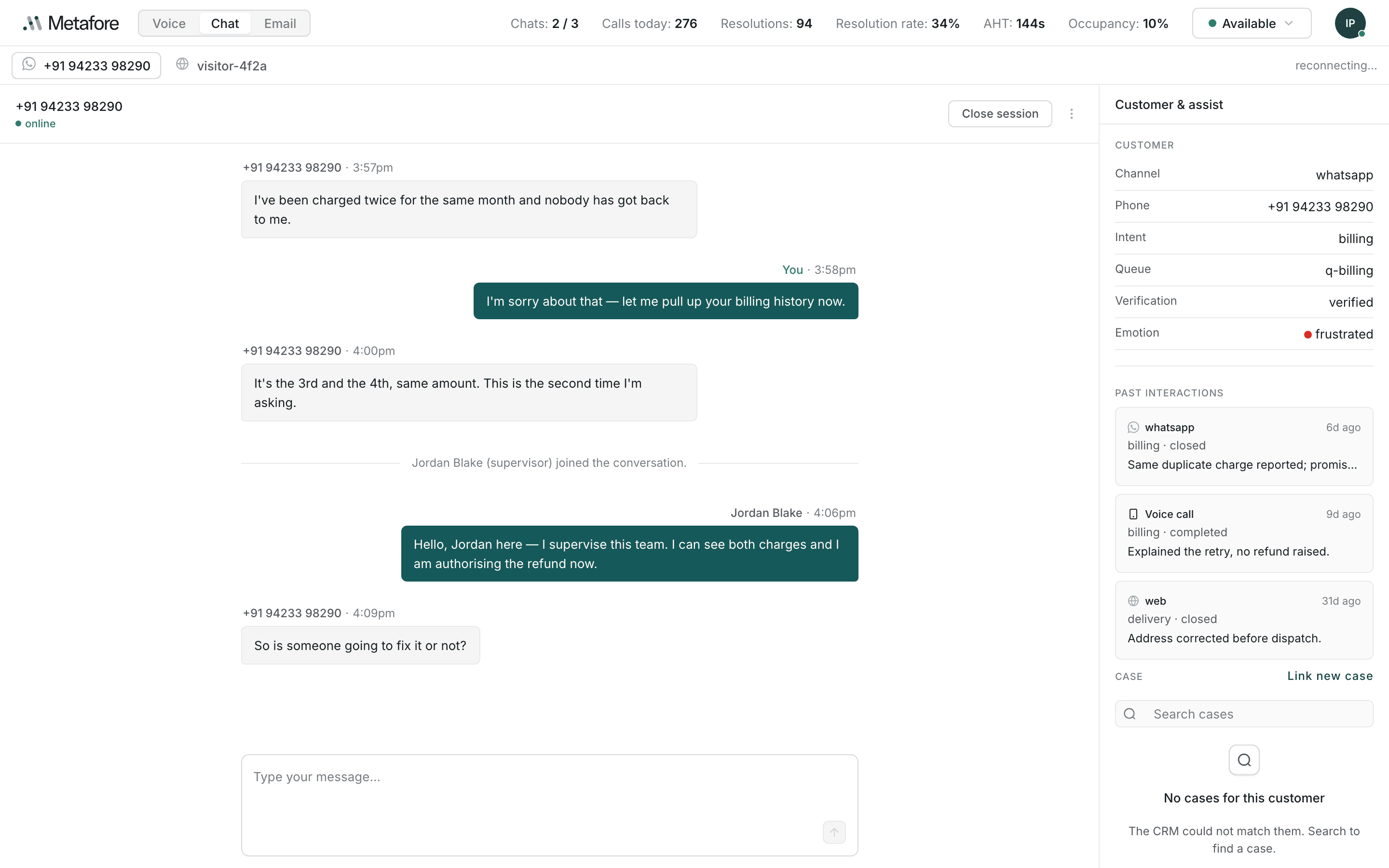
- The chat strip, across the top, listing what you are holding.
- The conversation, in the middle: the messages, and the box you type in.
- Customer & assist, on the right: who they are, what they contacted you about before, their case, and the AI's suggestions.
There is also a Team button in the bottom right corner, which opens a panel for talking to colleagues without leaving the desk. See Getting help.
The feed status
At the right of the chat strip is a small word — live, polling,
connecting…, reconnecting… or offline. It describes the connection
carrying new messages to your screen, not the customer's connection.
live is the normal state. polling means the desk is fetching new messages on
a timer instead of receiving them as they arrive: slower, but nothing is lost.
reconnecting… means it is trying to restore the connection.
You do not need to act on the feed status. It is there so that a slow
conversation has a visible explanation rather than looking like a customer who
has gone quiet. If it stays on reconnecting… for a long time, tell your
supervisor.